What should you decide before you start?
- Who owns the move. One named person makes the decisions and chases the data.
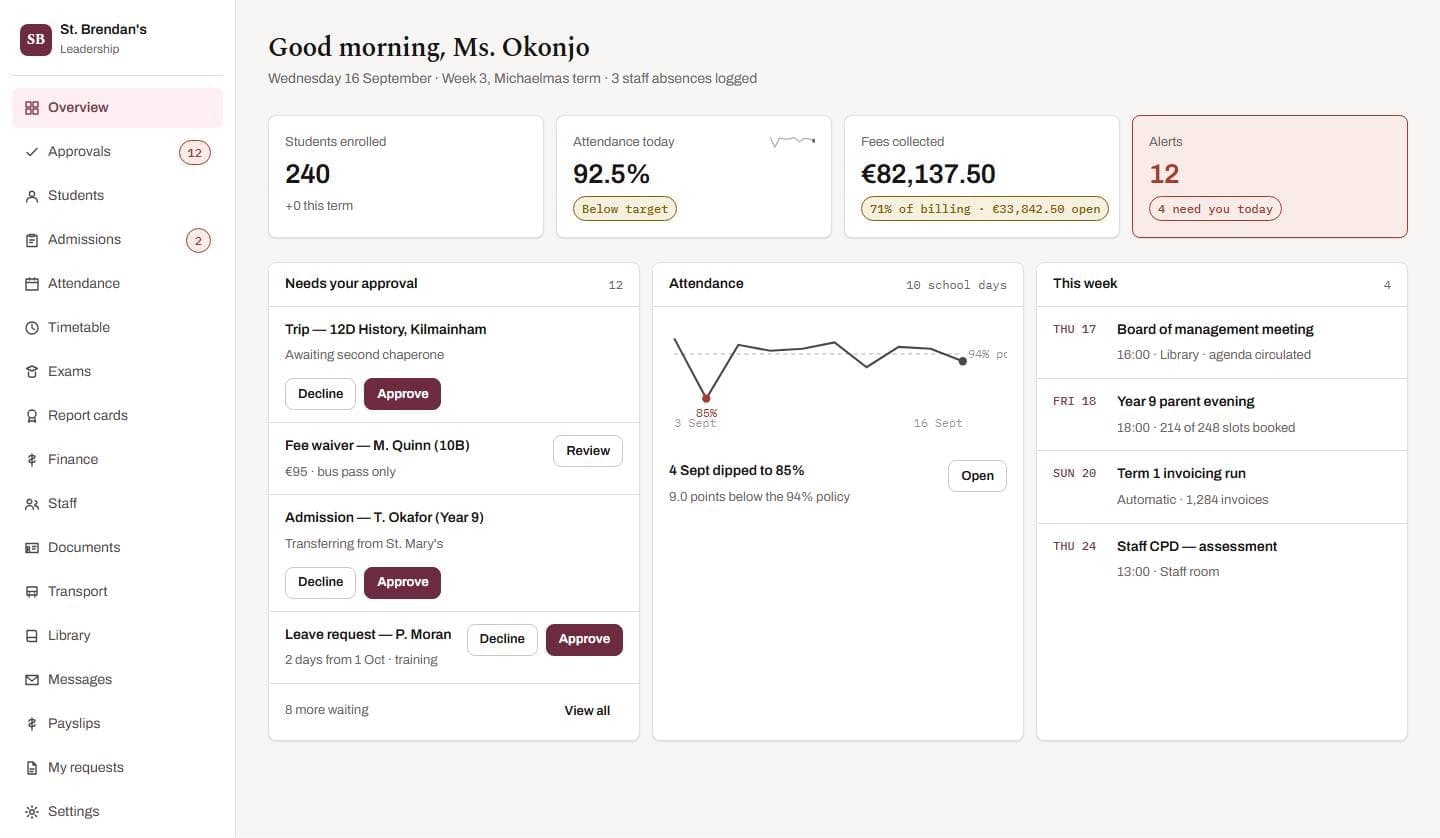
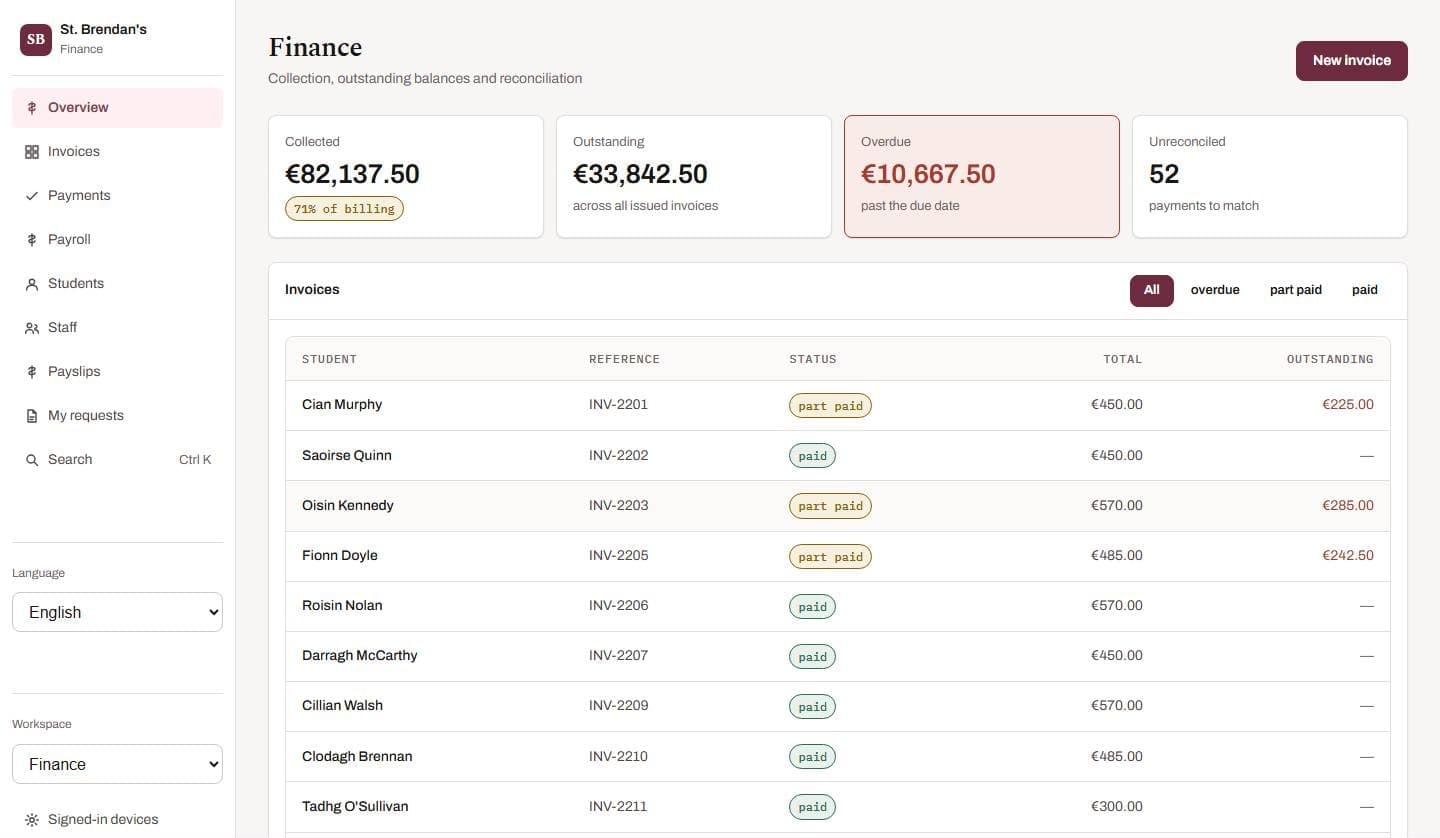
- Which modules come first. Records, attendance, timetable, fees and messaging are a sensible start. Admissions, reports, transport and payroll can follow.
- What history you need. Current students, guardians, staff and outstanding balances matter on day one. Older records can often stay archived.
- A cut-off date. Pick the start of a term, so you are not changing systems in the middle of a reporting period.
How do you clean your data?
Do this in your spreadsheets, before any import. The software can only be as accurate as what you give it.
| Problem | What to do |
|---|---|
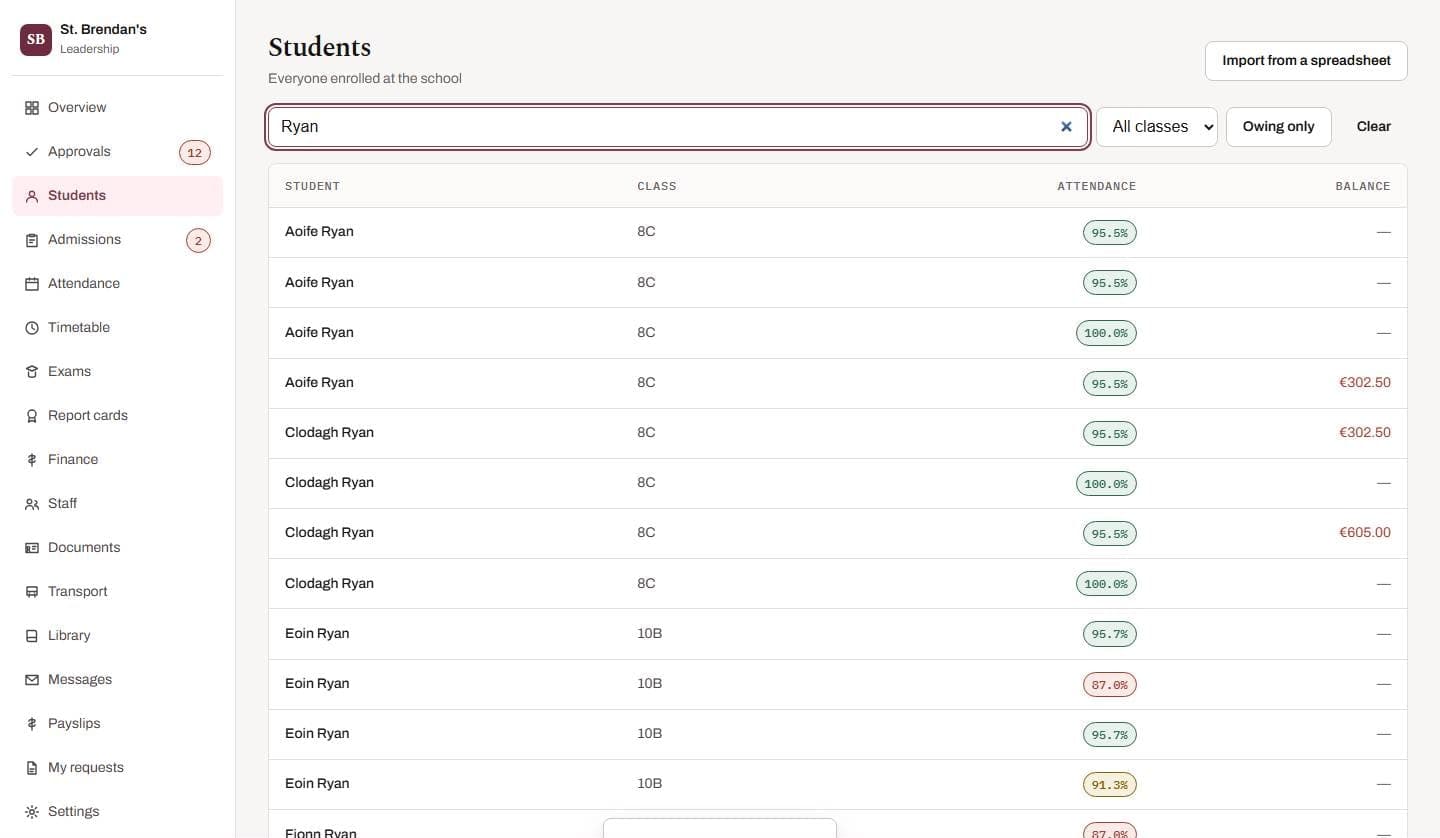
| The same student appears twice | Keep one row per student and merge the details. |
| Names and dates in mixed formats | Pick one format for each and apply it to every row. |
| Guardians missing contact details | Add an email address for each guardian, because that is how families will be reached. |
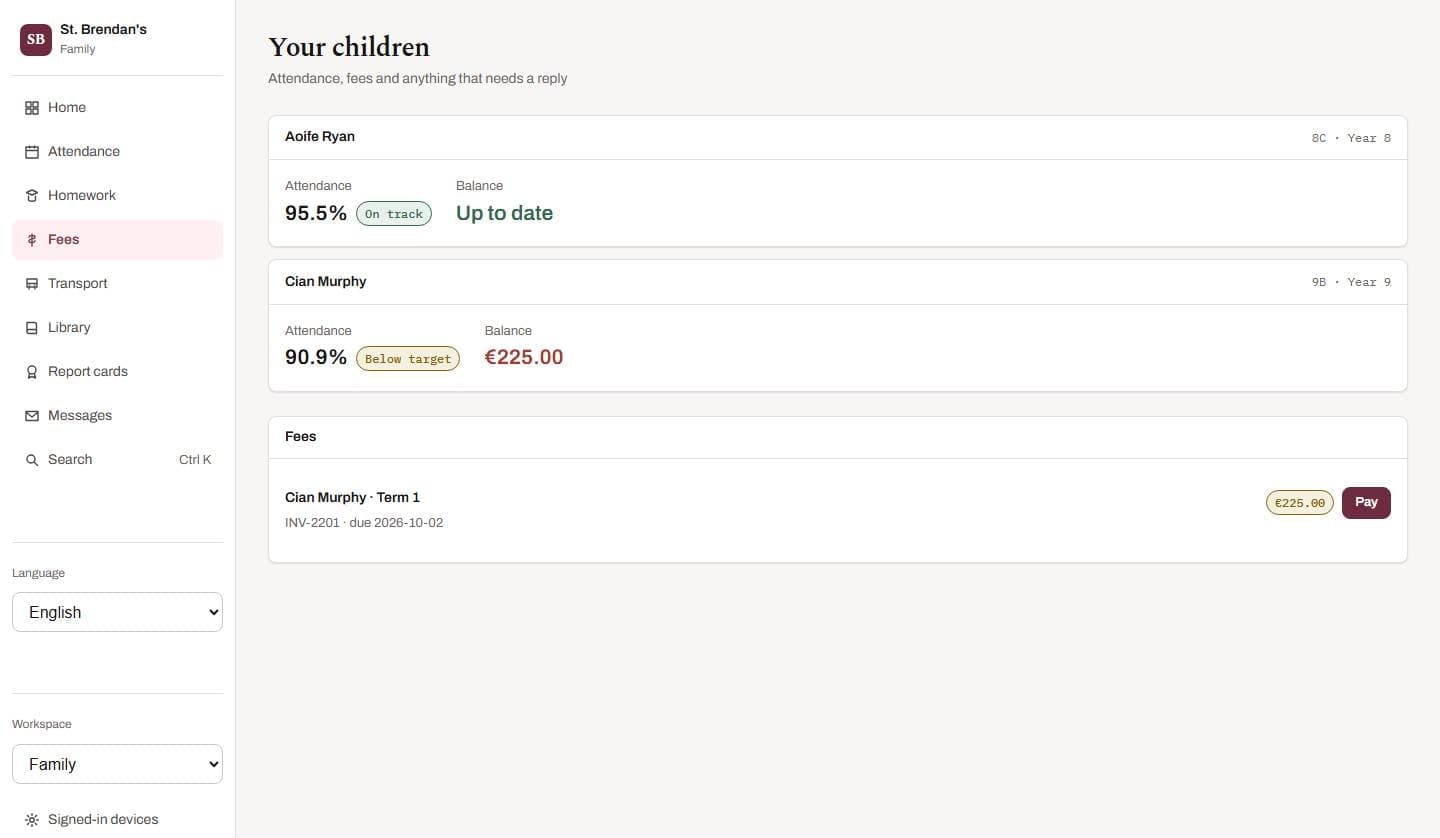
| Siblings entered as unrelated | Link them to the same guardian, so a family sees all its children. |
| Students who have left are still listed | Remove them or move them to a separate sheet. |
How does the import work?
AcademicsFlow imports students and staff from a spreadsheet (CSV). Before anything is saved it shows a preview with an error for every row that has a problem. The commit is all-or-nothing, so a bad row never leaves you half-imported.
- Export your cleaned spreadsheet as CSV.
- Upload it and read the preview. Fix every error in the spreadsheet and upload it again.
- Commit the import only when the preview is clean.
- Spot-check a handful of students, guardians and balances against your original records.
Read how the admissions and enrolment module handles imports alongside new applications.
How do you pilot, train and go live?
- Pilot with one year group. Let those teachers take registers and set work for a short period, and note what confuses them.
- Train by role. Office staff, teachers and leadership each need a different half hour. A demo on a populated sample school makes training concrete.
- Go live at the start of a term. Announce the date to staff and families, and tell families how they will sign in.
- Keep the old spreadsheets read-only for a short period, so you can check a figure. Do not keep entering data in both places.
- Add modules in stages. Switch on admissions, reports, transport and payroll as the team is ready.
What if your data is complicated?
If you are moving fees, balances and history out of another system, ask for help. AcademicsFlow offers assisted data migration as a one-off, fixed-price add-on that moves students, guardians, fees and history from your current system. See the pricing page for what else is optional, or talk to us about your data.
What does a realistic timeline look like?
Timelines depend on how clean your data is and how many modules you switch on, so treat the shape below as a template to adapt, not a promise. The order matters more than the dates.
| Phase | What happens | What you should have at the end |
|---|---|---|
| 1. Prepare | Name an owner, decide the first modules and the go-live date, and list what to bring across | A short written plan and a cut-off date at the start of a term |
| 2. Clean | Fix duplicates, formats, guardians and leavers in the spreadsheets | One tidy row per student and per staff member |
| 3. Import | Upload, read the preview, fix every error and commit only when it is clean | Students, guardians and staff in the system |
| 4. Pilot | One year group takes registers and sets work for a short period | A list of what confused people, and fixes for it |
| 5. Train | Each role gets its own short session on a populated sample school | Staff who have done the task once before the real day |
| 6. Go live | Announce the date, switch the old spreadsheets to read-only and start | One system of record |
| 7. Extend | Add admissions, reports, transport and payroll as the team is ready | The remaining modules, one at a time |
How do you bring staff with you?
A migration succeeds or fails on whether people use the new system. A few habits help:
- Start with the daily task each person does most. For a teacher it is the register. For the office it is finding a student. A quick win builds trust.
- Explain what stops. People worry less when they are told which spreadsheet they will no longer have to update.
- Name a helper in each department who has done the pilot and can answer the first questions in the corridor.
- Keep training short and role-specific. Half an hour on your own tasks beats a day on every feature.
- Listen in the first fortnight. Collect problems in one place, fix what you can, and tell people what changed.
How do you check that the move worked?
Do not assume an import is right because the preview was clean. A preview checks that the file is valid, not that it matches your school. After the commit, compare a sample against the originals:
| Check | How |
|---|---|
| Counts | Compare the number of students and staff with your last official count. |
| Families | Open five families with several children and confirm that every child is linked. |
| Spellings | Look up students whose names have accents or unusual characters. |
| Balances | Compare the outstanding fees for a dozen students with your records. |
| Access | Sign in as a teacher and as a parent and confirm each sees only what they should. |
What mistakes should you avoid?
- Importing before cleaning, and discovering the mess in the new system.
- Switching every module on at once, with every member of staff learning everything in the same week.
- Changing systems in the middle of a term or a reporting period.
- Skipping staff training and expecting the software to teach itself.
- Running two live systems for too long, so nobody knows which one is right.
The records you are moving live in a student information system. For the whole picture of what a connected system replaces, see school management software, and for colleges see college management software.